
Scanning to email on your HP printer can streamline your workflow, making it easier to share important documents quickly. Whether you need to send a signed contract or digitize a cherished photo, knowing how to get this done simplifies your tasks and saves you time. 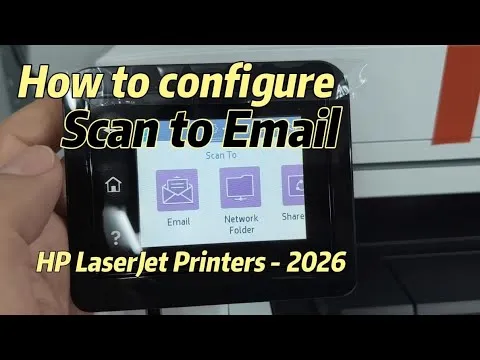
Maybe you've just set up your printer or you're looking to level up your document-handling skills. Whatever the case, you're not alone in wanting to cut down on clutter and file-sharing frustrations. You'll find that the process isn’t just efficient; it opens doors for better communication and organization in both personal and professional realms.
If you’re up against a deadline or trying to send important paperwork from home, knowing how to scan directly to your email is a game changer. Let’s walk through the steps to make this process as smooth as possible.
Essential Components for Scanning to Email on HP Printers
Scanning documents directly to email on HP printers is a convenient feature that simplifies sharing important files. Here’s a breakdown of the essential components involved in using this function effectively.
- Printer Model: Ensure your HP printer supports scanning to email. Models with this capability often include HP LaserJet and HP OfficeJet series.
- Internet Connection: A stable internet connection is necessary for sending scanned documents via email. Connect your printer to Wi-Fi if required.
- Email Account Configuration: You’ll need to set up an email account directly on the printer. This usually requires logging into the printer’s control panel and entering your email credentials.
- Scan Settings: Familiarize yourself with the scanning settings on your printer. Options typically include resolution, file format (PDF, JPEG), and color settings (black and white or color).
- Recipient Details: Have the recipient's email address ready. Double-check for accuracy to avoid sending documents to the wrong email.
- Scanning Process: This usually involves placing the document in the scanner, selecting the scan-to-email option from the printer's menu, and initiating the scan.
Common Challenges and Solutions
| Challenge | Solution |
|---|---|
| Email Credentials Error | Verify email settings and ensure you’ve entered the correct username and password. |
| Connection Issues | Check Wi-Fi connectivity. Restart the printer and router if necessary. |
| File Size Limitations | Reduce the resolution or choose a different file format to decrease file size. |
| Document Not Scanning | Ensure the document is properly placed and that the scanner’s glass is clean. |
Following this structure ensures a smooth process for scanning documents to email. For more insights on scanning documents for sharing, check out this article.
Real-World Applications of Scanning to Email on HP Printers
Scanning Receipts for Expense Reports
Using an HP printer to scan receipts directly to email allows individuals to organize expenses without physical clutter. This is especially handy for freelancers or business travelers who need to submit expense reports quickly.
Why this matters: Streamlining expense tracking enhances financial organization, making reporting efficient and ensuring no receipts get lost.
Emailing Important Contracts
Businesses often need to send signed contracts or agreements immediately. Scanning a physical document to email on an HP printer enables quick sending, ensuring that the deal progresses without delays.
Why this matters: Accelerating contract exchanges helps maintain business momentum, fostering relationships and facilitating swift decision-making.
Sending Medical Documents Securely
Healthcare providers can use HP printers to scan patient forms or medical records and send them directly to secure emails, ensuring patient confidentiality while maintaining records accuracy.
Why this matters: Upholding patient privacy standards enhances trust in medical practices, ensuring compliance with regulations like HIPAA.
Archiving School Projects
Students can scan their completed projects or presentations to email them for submission. This method retains a digital copy while facilitating easy sharing with teachers or classmates.
Why this matters: Improving submission processes allows students to demonstrate their work and receive feedback without the risk of losing physical copies.
Submitting Legal Documents
Law firms often need to quickly submit various legal documents to clients or courts. Scanning these documents to email ensures timely delivery and eliminates the need for physical mail.
Why this matters: Enhancing communication speed in legal matters helps families and businesses react quickly in emergencies or time-sensitive cases.
Quick Sharing of Marketing Materials
Marketing teams can scan brochures or flyers and send them to clients or team members instantly via email. This allows for rapid feedback and collaboration on marketing strategies or design changes.
Why this matters: Facilitating quick collaboration improves project outcomes and ensures that marketing efforts align with brand goals efficiently.
Sending Certificates and Awards
Organizations can scan and email certificates or awards to recipients, making it more convenient for virtual ceremonies or remote recognition of achievements.
Why this matters: Recognizing achievements in a timely manner fosters positive engagement and motivation within teams or communities, enhancing overall morale.
Your Questions About Scanning to Email on HP Printers Answered
How do I set up my HP printer to scan documents to my email?
To set up your HP printer for scanning to email, first ensure the printer is connected to the internet. Access the printer's control panel, go to the "Scan" menu, then select "Scan to Email." You may need to enter your email settings, including your SMTP server and email credentials. Make sure to save these settings for future use.
What should I do if my HP printer won't scan to email?
If your HP printer isn't scanning to email, confirm that it's properly connected to the network and that your email settings are correct. It's also worth checking for firmware updates for your printer, as outdated software can cause issues. If problems persist, consider restarting both your printer and router.
Can I scan multiple pages to a single email using my HP printer?
Yes, most HP printers allow you to scan multiple pages into a single document. Simply place the pages in the automatic document feeder (ADF) and select the scan option on the control panel. When prompted, choose the option to scan to email, and the printer should compile all pages into one PDF or document format for sending.
Is there a size limit for email attachments when scanning?
Yes, email providers typically impose attachment size limits, commonly around 25 MB. Ensure the scanned document's size remains within these boundaries. If you're scanning larger documents, consider compressing them or splitting them into smaller files to successfully send them via email.
Getting your documents scanned to email on an HP printer can save you a ton of time and hassle. If you follow the step-by-step instructions we’ve talked about, sending important files right from your printer will feel like second nature. So, why not give it a shot next time you need to send something quick? Your future self will thank you for taking this small step toward more efficient document sharing!





