
Want to keep your private conversations away from prying eyes? Encrypting your emails in Gmail is a straightforward way to secure your communications, ensuring that only the intended recipient can read your messages. 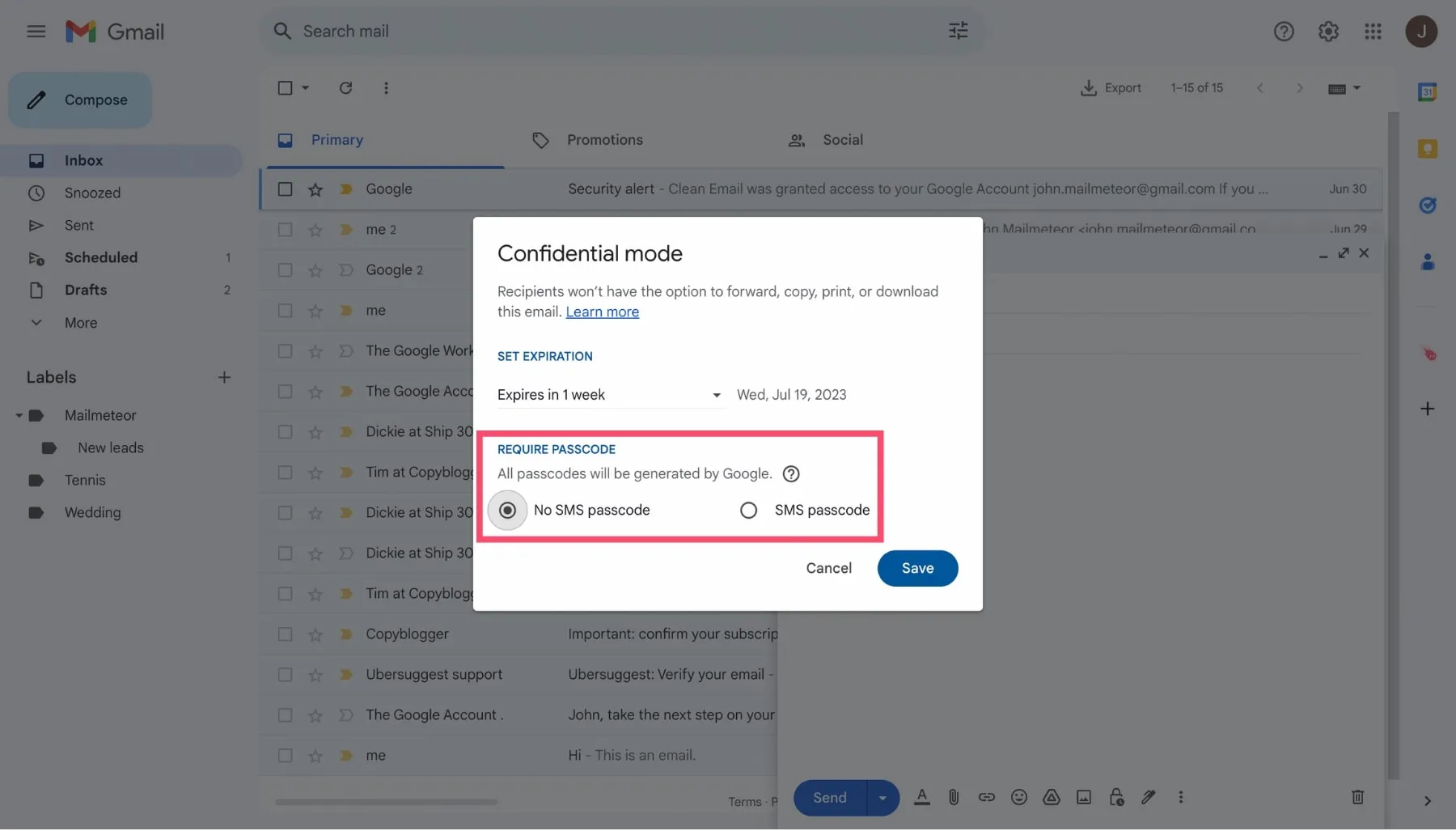 With cyber threats on the rise, understanding how to enhance your email security is more crucial than ever.
Email encryption not only protects sensitive information like financial details or personal messages but also gives you peace of mind. After all, nobody wants their private discussions exposed, whether it's work-related or personal. Learning how to encrypt your emails will empower you to take control of your digital privacy.
If you’re curious about whether your email might already be at risk, check out how to identify signs of a compromised account. Taking these steps can significantly enhance your online safety.
Essential Components of Email Encryption in Gmail
Encrypting an email in Gmail helps safeguard your private conversations from prying eyes. While Gmail offers some built-in security features, adding encryption adds an extra layer of protection. Here’s a straightforward breakdown of the core elements involved in encrypting your emails.
Understanding Email Encryption
Email encryption disguises the content of your messages, making them unreadable to anyone who doesn't have the right keys or credentials. Two primary types of encryption are used:
- Transport Layer Security (TLS): Automatically encrypts emails sent between email servers.
- End-to-End Encryption: Ensures that only the sender and recipient can read the email content.
Using Gmail's Built-in Features
Gmail provides some encryption features by default. Here’s what to keep in mind:
- Confidential Mode: This feature allows you to set expiration dates on messages and revoke access after sending. It doesn't encrypt the email, but it adds some level of security.
- TLS: Gmail automatically uses TLS if both the sending and receiving servers support it. It’s worth checking if the recipient's server uses TLS for additional protection.
Implementing Stronger Encryption Options
If you need a higher level of security, consider third-party tools. Popular options include:
- PGP (Pretty Good Privacy): Uses a combination of public and private keys for email encryption. Users need to install an extension like Mailvelope or use a dedicated email client.
- ProtonMail: Offers built-in end-to-end encryption. If both parties are using ProtonMail, emails remain secure throughout.
Steps to Encrypt an Email using PGP in Gmail
For those opting to use PGP, follow these steps:
- Install a PGP extension, such as Mailvelope.
- Create your key pair within the extension.
- Share your public key with the email recipient.
- Compose your email in Gmail.
- Encrypt the email using the Mailvelope interface before sending it.
Pros and Cons of Email Encryption
| Pros | Cons |
|---|---|
|
|
For those concerned about their email security, understanding and implementing encryption can greatly enhance your protection against unauthorized access. If you suspect your email has been compromised, check out how to recognize signs of hacking and respond appropriately.
Real-World Examples of Email Encryption in Gmail
Using S/MIME for Enhanced Security
Enabling S/MIME encryption in Gmail requires a valid digital certificate. Once set up, it allows senders and recipients to exchange encrypted messages seamlessly within their organization.
Why this matters: Stating that S/MIME enhances email security underscores the importance of protecting sensitive communications in professional environments.
Implementing PGP with Third-Party Tools
Users can integrate PGP (Pretty Good Privacy) by using browser extensions like Mailvelope. This tool provides an easy way to encrypt and decrypt messages directly in Gmail.
Why this matters: Asking users to consider integrating PGP demonstrates a significant upgrade in control over their email security, allowing for private conversations even with external contacts.
Utilizing Gmail Confidential Mode
Gmail’s Confidential Mode allows users to send self-destructing messages. Senders can set expiration dates and revoke access, which adds a layer of protection for sensitive information.
Why this matters: Highlighting the self-destruct feature promotes awareness about temporary sharing, which can prevent data breaches after information is shared.
Encrypting Attachments with Google Drive
Instead of sending sensitive attachments directly, users can upload them to Google Drive and set sharing permissions before sharing links via Gmail. This can facilitate controlled access.
Why this matters: Providing information on using Drive for attachments emphasizes the importance of managing access, ensuring that only intended recipients can view sensitive files.
Using Password-Protected Documents
Creating password-protected documents (like PDFs or Word files) before attaching them to emails ensures that only those with the password can access the content.
Why this matters: By keeping the document secured, users reduce the risk of unauthorized access, especially when discussing confidential information.
Verifying Sender Identity with Digital Signatures
Utilizing digital signatures, users can authenticate the identity of email senders, ensuring that the messages have not been tampered with during transit.
Why this matters: Asking recipients to verify senders with digital signatures supports maintaining trust in communications, particularly when dealing with sensitive content.
Disabling Automatic Download for Attachments
Adjusting settings to disable automatic download of attachments can protect against malware that may be included in emails, ensuring users remain cautious about opening files.
Why this matters: Stating the importance of controlling attachment downloads helps to highlight proactive measures in reducing vulnerability to cyber threats.
Understanding Email Encryption in Gmail
How can I encrypt my emails in Gmail without third-party tools?
You can use Google's built-in end-to-end encryption feature called "Confidential Mode." When composing an email, click on the lock icon at the bottom of the window. This will allow you to set an expiration date and require a passcode for the recipient to view the message.
What if the recipient doesn't use Gmail? Will the encryption still work?
If the recipient doesn't use Gmail, you can still use Confidential Mode. They'll receive an email with a link to a secure page where they can enter a passcode to access your message. This way, the encryption remains intact regardless of the recipient's email provider.
Is encryption available for attachments in Gmail?
Are there any limitations to using encryption in Gmail?
Yes, there are some limitations. Confidential Mode doesn't encrypt emails at rest on the server, so sensitive information should be considered carefully. Additionally, certain features like replying or forwarding are restricted for messages sent in this mode.
Encrypting your emails in Gmail not only protects your sensitive information but also offers peace of mind in a digital world where privacy is often compromised. By utilizing built-in features and third-party tools, you can ensure that your communications stay confidential. So, take a moment to set up those encryption options—it’s a simple step that can make a big difference. Your data deserves that protection, and you’ll feel a lot better knowing your messages are secure. If you’re also concerned about the safety of your account, check out our article on how to know if your email is hacked and what to do next for added security tips.




