Feeling overwhelmed by a cluttered inbox? You're not alone. Many of us find it challenging to keep up with the flood of emails—important updates can easily slip through the cracks. Archiving your emails in Outlook can not only help clear up that digital space but also ensure that you can easily locate important communications when you need them.
Whether you're managing work correspondence or personal messages, knowing how to archive emails properly can transform your workflow. It's more than just freeing up space; it’s about creating a system that works for you and enhances your productivity.
Core Elements of Archiving Emails in Outlook
Archiving emails in Outlook helps manage your inbox by moving old messages to a designated storage area, decluttering your primary view while keeping important emails accessible. Here are the essential components to understand when archiving emails:
- Purpose of Archiving: The primary goal is to reduce inbox clutter, improve organizational efficiency, and ensure important emails are not permanently deleted.
- Types of Archiving:
- Manual Archiving: This involves selecting and moving emails to an archive folder as needed.
- Auto-Archiving: This feature automatically moves emails based on specified criteria, like age or size.
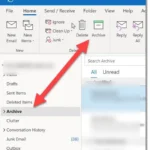
- Archive Location: Archived emails are stored separately, usually within a specific "Archive" folder or a designated archive file (.pst), which can be accessed later.
- Restoration of Archived Emails: Users can retrieve archived emails by navigating to the Archive folder, ensuring that important information is still easily retrievable.
Steps to Archive Emails in Outlook
Follow these straightforward steps to archive your emails effectively in Outlook:
- Open Outlook: Launch the Outlook application on your computer.
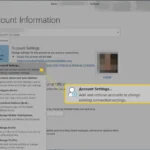
- Find the Archive Feature: Navigate to the “File” menu, then select “Cleanup Tools,” and choose “Archive.”
- Select Emails for Archiving: In the Archive dialog box, choose "Archive this folder and all subfolders" or “Archive this folder,” then select the desired folder (e.g., Inbox).
- Set Date Criteria: Specify the cut-off date for emails you wish to archive. Outlook will archive all emails received before this date.
- Choose Archive Location: Confirm or change the location of the archive file, typically saved as a .pst file on your computer.
- Start Archiving: Click “OK” to initiate the archiving process. Outlook will move selected emails to the archive folder.
Pros and Cons of Email Archiving in Outlook
| Pros | Cons |
|---|---|
| Reduces clutter in the inbox, making it easier to find current emails. | Archived emails may be less accessible if users forget where they're stored. |
| Keeps essential emails safe and organized for future reference. | The archiving process can take time, especially for large mailboxes. |
| Enhances Outlook performance by decreasing the number of messages in the active inbox. | If auto-archiving is enabled improperly, important emails might be archived too soon. |
For those looking to further improve their email organization, exploring how to manage your inbox is beneficial. You can read more about it here.
Real-World Applications of Email Archiving in Outlook
Utilizing Instant Archive Shortcuts
Using the keyboard shortcut Ctrl + Shift + V allows users to quickly archive selected emails without navigating through menus.
Why this matters: Enhancing workflow efficiency by reducing the time spent on manual archiving actions.
Creating Custom Archive Folders
Establishing specific folders tailored for project-related emails enables better organization and retrieval of important communications.
Why this matters: Improving email management by categorizing messages according to relevance and context, making future searches more efficient.
Scheduling Regular Archiving Sessions
Setting a recurring calendar reminder to archive emails ensures messages are consistently sorted and irrelevant emails are removed.
Why this matters: Encouraging consistent practices that prevent inbox overload, thereby maintaining a clear and manageable email environment.
Using Rules for Automated Archiving
Creating rules within Outlook to automatically move specific emails to archive folders based on criteria like sender or subject helps streamline the process.
Why this matters: Facilitating proactive email management by automating routine tasks, allowing users to focus on more critical messages.
Implementing Archive Search for Easy Retrieval
Utilizing the search function specifically for archived emails allows users to quickly locate information stored in various archive folders.
Why this matters: Simplifying information retrieval by providing easily accessible tools, thus saving time when needing past communications.
Exporting Archived Emails for Backup
Exporting archived emails to a local file ensures important communications are backed up and can be restored if necessary.
Why this matters: Safeguarding data integrity by allowing users to store email histories in multiple locations, protecting against data loss.
Leveraging Shared Archives in Team Settings
Setting up shared archive folders within teams allows multiple users to access important communications relevant to collaborative projects.
Why this matters: Encouraging teamwork by providing quick access to crucial communications, enhancing collaboration and transparency among team members.
Archiving Emails in Outlook: Your Most Pressing Questions Answered
How can I archive emails in Outlook without losing them?
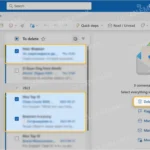
To archive emails in Outlook, navigate to your inbox or folder, select the emails you want to archive, and then click on the "Archive" button. This will move your emails to the Archive folder, maintaining their accessibility for future reference.
What is the difference between archiving and deleting emails in Outlook?
Archiving keeps your emails in a separate folder, allowing you to access them later, while deleting removes them permanently. Archiving helps reduce clutter without losing important correspondence.
Is there a way to automate the email archiving process in Outlook?
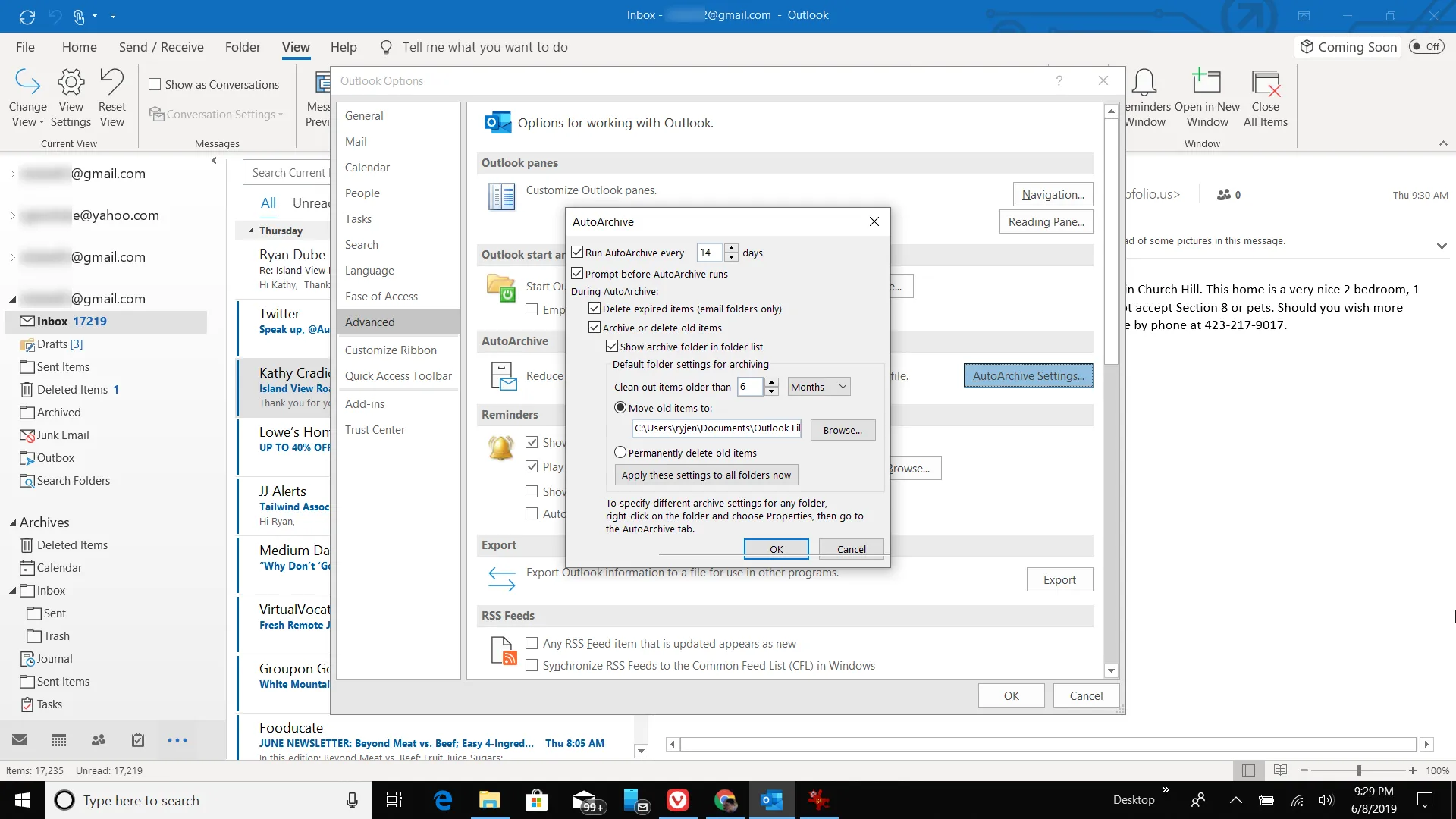
Yes, you can set up auto-archiving in Outlook. Go to File > Options > Advanced, then click on "AutoArchive Settings." From there, you can configure how often the archiving occurs and what items are archived.
Can I recover archived emails if I accidentally remove them from my Archive folder?
If you mistakenly delete emails from your Archive folder, you can often recover them from the "Deleted Items" folder unless they've been permanently removed. If they've been purged, recovery may not be possible, so it’s wise to periodically back up your Archive.
Keeping your emails organized isn’t just about aesthetics; it makes a world of difference in how you manage your day-to-day tasks. By archiving emails in Outlook, you're essentially giving yourself a breath of fresh air, decluttering your inbox, and allowing important messages to shine through. So, don’t hesitate to implement this simple but powerful practice. Your future self will thank you for the peace of mind that comes with a well-structured inbox. And if you want to take it a step further, check out how to organize your email inbox for clearer communication—your productivity will thank you!