Creating email templates in Outlook can save you time and make communicating with colleagues or clients much simpler. Imagine having pre-designed messages that reflect your unique voice while still conveying all the necessary information. Whether you're sending out regular updates, invitations, or marketing materials, templates can streamline your process and help maintain consistency. 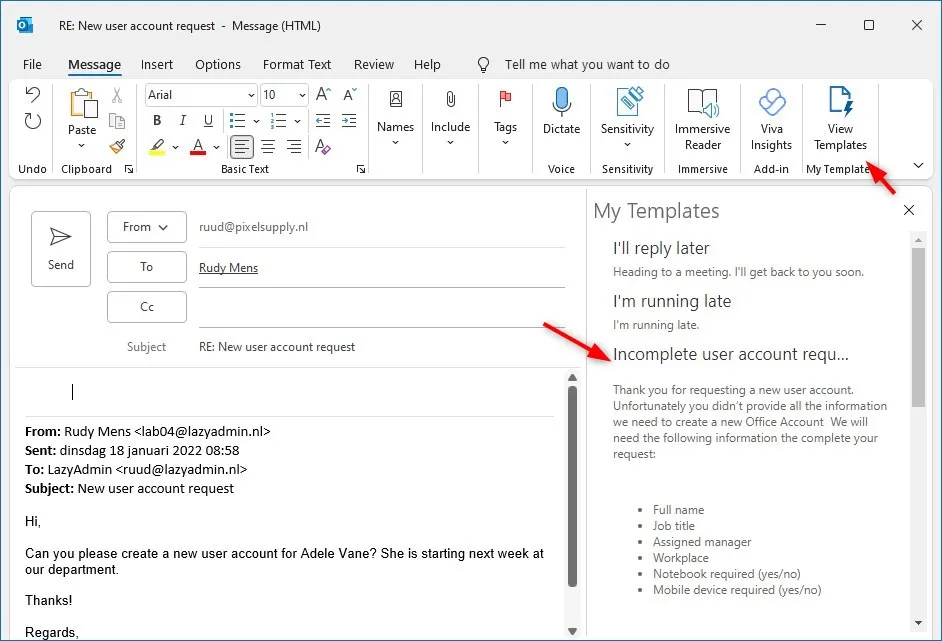
When you think about the number of emails you send in a week, having templates ready to go isn’t just a convenience; it's a real game changer. You’ll reduce the stress of constant rewriting and ensure that your communications stay on point and professional every time.
And if you're also looking to polish up your overall email presence, don’t forget that a great email signature can complement your templates nicely. If you haven’t set one up yet, it’s worth exploring how to create a professional email signature in Outlook.
Core Elements for Designing Email Templates in Outlook
Creating email templates in Outlook streamlines communication and enhances consistency. Here’s how to build effective templates that cater to your needs.
1. Understanding Template Types
Outlook allows for different types of templates, each catering to various needs:
- Basic Email Templates: Use for routine communications or reminders.
- Rich Text Templates: Ideal for visually engaging messages, incorporating images and formatted text.
- HTML Templates: Best for marketing emails; these support comprehensive design elements.
2. Steps to Create Email Templates
Follow these steps to create your templates:
- Open Outlook: Launch the application and navigate to "New Email".
- Compose Your Email: Write the content you want to include in your template.
- Format the Content: Utilize the formatting options for text, colors, and layouts.
- Save as Template: Click on "File," select "Save As," and choose "Outlook Template" from the dropdown menu.
3. Accessing and Using Templates
To use your saved templates:
- Go to "New Items" in Outlook, then "More Items" and select "Choose Form."
- Select "User Templates in File System" to find your created template.
- Open the template, edit if necessary, and send.
4. Key Features to Consider
| Feature | Description |
|---|---|
| Customization: | The ability to edit templates for specific use cases or recipients. |
| Reusability: | Templates can be reused for similar communications, saving time. |
| Consistency: | Ensures a uniform message and branding across various communications. |
5. Common Mistakes to Avoid
Be cautious of these common pitfalls:
- Overloading with Graphics: Excessive images may cause loading issues.
- Lacking Personalization: Always tailor templates for specific recipients when possible.
- Ignoring Compatibility: Be mindful of email clients that may not render complex templates as intended.
For additional customization, consider enhancing your email signature as detailed in our article on creating an email signature in Outlook.
Seven Real-World Uses of Email Templates in Outlook
Streamlining Repetitive Responses
Email templates in Outlook can be designed to manage frequent inquiries, such as customer service responses or FAQs. When a common question arises, a pre-written response can be used, saving time and ensuring consistency in communication.
Why this matters: Reducing the time spent on drafting similar emails allows for a more efficient workflow and enhances customer satisfaction through quicker response times.
Enhancing Team Collaboration
Why this matters: Promoting a standard format for sharing information helps all team members stay informed and reinforces a cohesive team approach.
Personalizing Outreach Campaigns
Why this matters: Ensuring emails feel customized strengthens relationships and increases the likelihood of engagement from recipients.
Facilitating Event Invitations
Why this matters: Streamlining event communications enhances attendee participation and minimizes the risk of important details being overlooked.
Standardizing Brand Messaging
Why this matters: Establishing a consistent brand presence through email fosters trust and recognition among recipients.
Creating Follow-Up Reminders
Why this matters: Maintaining regular follow-up communication solidifies relationships and demonstrates commitment to collaboration or service.
Promoting Products or Services
Why this matters: Utilizing cohesive promotional emails enhances customer awareness and encourages engagement with new offerings.
Creating Email Templates in Outlook: Your Questions Answered
How do I create a basic email template in Outlook?
To create a basic email template in Outlook, start by composing a new email. Write your message as you wish it to appear. Once done, go to File > Save As, and in the Save as type dropdown menu, select Outlook Template (*.oft). Choose a location, name your template, and click Save. This template can now be accessed whenever needed.
Can I customize my email templates further beyond just text?
Absolutely! You can enhance your email templates by adding images, links, and formatting elements like bullet points or tables. Just create your template in the regular email composition window, using the formatting tools available. All your customizations will be saved within the .oft file.
How do I insert an email template into a new message?
To insert your saved email template into a new message, go to Home > New Items > More Items > Outlook Data File. Navigate to where you saved the template (.oft file) and double-click it. The template will open as a new email, ready for editing and sending.
Is there a way to manage multiple email templates in Outlook?
You can manage multiple templates by saving them in a designated folder on your computer or within Outlook itself. You can create a folder in the navigation pane for easy access. This organization allows you to find and use your templates without hassle.
Getting comfortable with email templates in Outlook can really save you time and help keep your communications consistent. Once you've set them up, you'll find that managing your inbox and sending out messages becomes a breeze. Don't hesitate to explore your creativity within those templates—personalize them to fit your style and needs! It’s all about making your life a little easier, so go ahead and give it a go. And if you’re looking to level up even more, why not check out how to create a standout email signature? It can really tie everything together and give your emails that polished touch.