
Changing the email associated with your Xbox account can feel daunting, but it’s often a necessary step, whether you're upgrading your email service or for security reasons. Keeping your gaming life organized and secure matters more than ever as we rely heavily on our accounts for both gaming and social interactions.
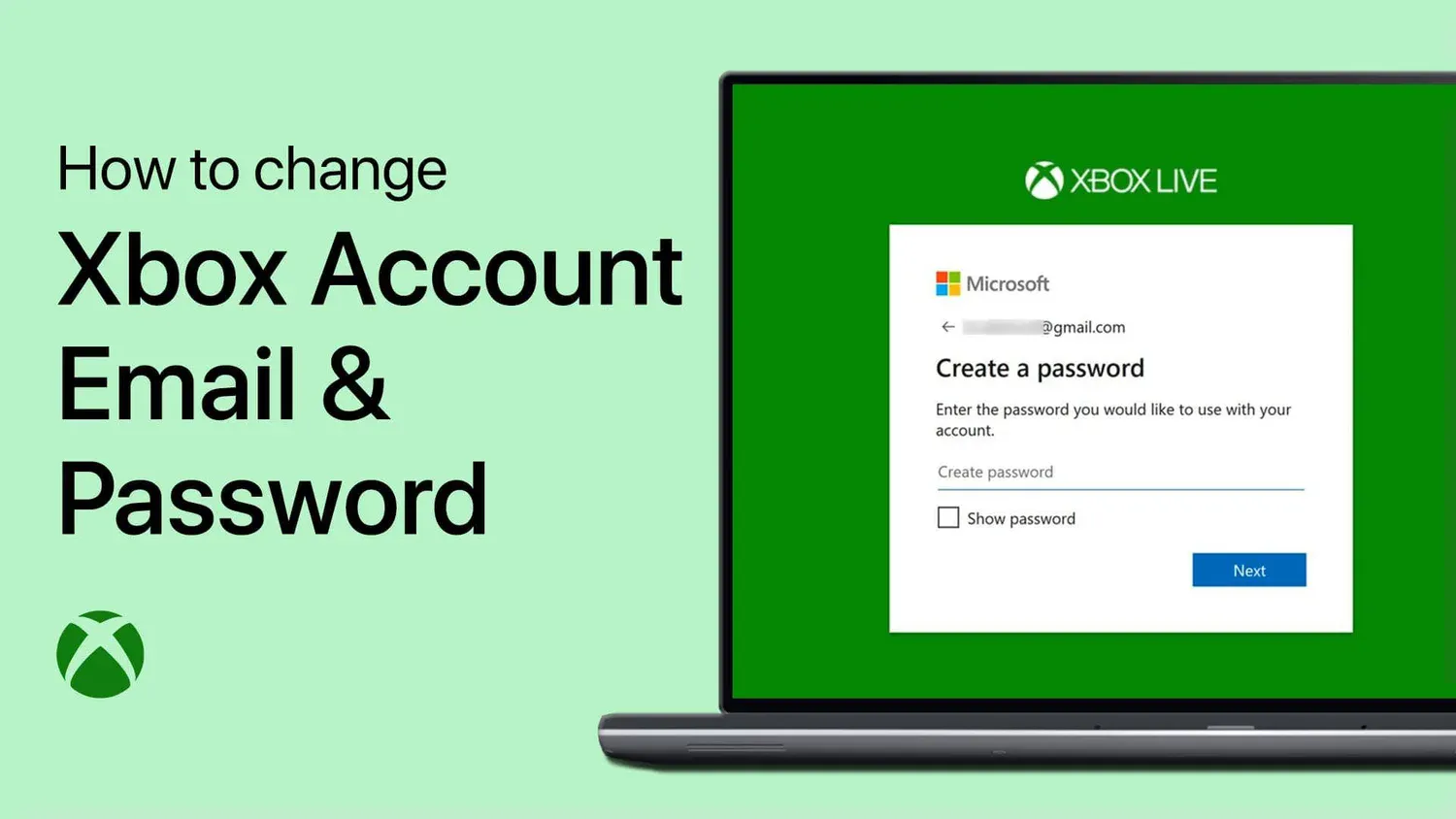
Having the right email linked to your Xbox can keep your account safe and help with password recovery. Plus, it ensures you stay connected with friends and updates on the latest games. Let’s walk through the simple steps to make this change, so you can focus on what you enjoy most: gaming.
Core Elements of Changing Your Xbox Account Email
Changing the email associated with your Xbox account is a straightforward process, but it's essential to understand the steps involved and the requirements for a successful transition. Below are the critical elements that cover the necessary actions to update your Xbox account email.
- Accessing Your Microsoft Account: Start by logging into the Microsoft account that is linked to your Xbox profile. This is the same account you use to sign into Xbox Live.
- Navigating to Your Info: Once logged in, head to the "Your info" section. This part of the account settings allows you to manage personal information.
- Changing Your Email Alias: Under "Account aliases," you can add a new email address. Follow the prompts to create a new alias or add an existing one.
- Verifying the New Email: Microsoft will send a verification email to the new address. Open this and complete the verification process to confirm that you own this email.
- Setting the New Email as Primary: After verification, return to the "Account aliases" section and set the new email as the primary alias. This action ensures that all future communications and logins will go to this address.
- Removing the Old Email: If desired, you can remove the old email address once the new one is set as the primary. However, ensure that you are confident in this choice, as it’s irreversible.
Here is a streamlined table for quick reference:
| Step | Action |
|---|---|
| 1 | Log into your Microsoft account. |
| 2 | Go to "Your info." |
| 3 | Select "Account aliases." |
| 4 | Add a new email address. |
| 5 | Verify the new email. |
| 6 | Set as primary alias. |
| 7 | Remove old email address if desired. |
Being aware of these elements not only makes the process more manageable but also helps avoid potential issues that might arise due to incorrect steps or overlooked details. For instance, without verifying the new email, the update won't take effect, impacting your Xbox services.
If you need to disconnect other email accounts from your devices while you manage your Xbox settings, check out our resource on removing email accounts from iPhone.
Real-World Examples of Changing Email for Xbox Account
Verifying Ownership Before Change
When attempting to change your email linked to your Xbox account, you must first verify your identity. This usually involves receiving a verification code sent to your current email or phone number associated with your account.
Why this matters: Stating the need for verification emphasizes the importance of account security in preventing unauthorized changes.
Navigating Microsoft Account Settings
The process involves accessing the Microsoft account settings interface. Players must sign in to their account on the Xbox website to initiate the email change process.
Why this matters: Highlighting user navigation helps users understand the importance of familiarity with the interface for smooth account management.
Choosing a New Email Address
Selecting a new email address requires that the chosen address isn’t already in use by another Microsoft account. Users need to ensure the new email meets all requirements set by Microsoft.
Why this matters: By keeping in mind the uniqueness required for email addresses, users can avoid potential roadblocks that may delay the change process.
Updating Security Information
Part of the change involves updating any security information linked to the account. This includes ensuring that the new email is set up for two-factor authentication where applicable.
Why this matters: Providing updated security measures enhances overall protection and reduces the risk of account breaches after the email change.
Receiving Confirmation of Change
Once the email change is initiated, users should expect a confirmation email at their new email address. This serves as a final step in verifying that the change has been successful.
Why this matters: Asking users to check their new email for confirmation reinforces the necessity of being vigilant post-change to ensure everything is set up correctly.
Impact on Associated Services
Changing the email linked to an Xbox account can affect other services, such as Xbox Game Pass. Users must ensure all associated services recognize the new email.
Why this matters: Highlighting potential service disruptions prepares users for necessary follow-up actions to ensure uninterrupted access to their subscriptions.
Contacting Support for Issues
If users encounter difficulties during the email change process, they have the option to contact Xbox support. They can provide personalized assistance and resolve specific issues related to the account change.
Why this matters: By keeping communication lines open with support, users can navigate challenges more efficiently and secure their accounts effectively.
Understanding Email Changes for Your Xbox Account
How do I change the email associated with my Xbox account?
To change the email linked to your Xbox account, visit the Microsoft account website. Log in with your current email and navigate to the "Your info" section. From there, select "Manage how you sign in to Microsoft," where you can add a new email and designate it as your primary login.
Will changing my Xbox account email affect my game progress?
No, changing the email address does not impact your game progress or stored data. Your Xbox account is tied to your Gamertag, and that information remains unchanged when you modify the email.
What should I do if I can't access the email I want to change to?
If you cannot access your new email for verification, you'll need to create a new Microsoft account with that email first. Once it's set up, you can return to your Xbox account and add the new email as a sign-in option.
Are there any restrictions on changing my Xbox account email?
Yes, you can only change your primary email address once every 30 days. Additionally, the new email must be unique and not currently linked to another Microsoft account. Ensure that you're aware of these conditions before making the switch.
Changing your email for your Xbox account isn't just about updating your login; it’s about ensuring that your gaming experience remains seamless and secure. Remember, a little time spent on this now can save you from potential headaches later on—like missing important account notifications or getting locked out. So, don’t put it off! Grab those login details and follow the steps, and you’ll be back to gaming in no time. If you’re also looking to tidy up your email management on other devices, check out how to remove email accounts from your iPhone for a smoother experience. Happy gaming!





