
Thinking about how to digitally sign your emails in Outlook? You’re not alone. In a world where authenticity matters more than ever, ensuring your emails are secure and verifiable can set you apart, showing your recipients that you're serious about privacy and professionalism.
A digital signature can protect your messages from tampering and help verify your identity. This is especially crucial for sensitive communications, whether you’re reaching out to clients or collaborating with colleagues.
Getting this right isn’t as complicated as it sounds. With a few straightforward steps, you can add that extra layer of trust to your emails. Let’s break down how to make your digital signature work for you.
Understanding the Core Elements of Digital Signatures in Outlook
Digitally signing an email in Outlook is about ensuring the authenticity and integrity of your messages. Here’s a breakdown of the essential aspects involved in this process.
What is a Digital Signature?
A digital signature uses encryption to validate the sender's identity and confirm that a message hasn’t been altered. This is typically achieved through Public Key Infrastructure (PKI), involving a pair of keys: a public key, available to everyone, and a private key, known only to the sender.
Benefits of Signing Emails
- Authentication: Recipients can verify that the email truly comes from you.
- Integrity: Assures that the content remains unchanged during transmission.
- Non-repudiation: You cannot deny sending the email, which adds a layer of legal protection.
Prerequisites for Signing Emails
Before sending digitally signed emails, ensure you have:
- A valid digital certificate, issued by a trusted Certificate Authority (CA).
- The digital certificate installed in your device.
- Outlook configured correctly to utilize the digital signature feature.
Steps to Digitally Sign an Email in Outlook
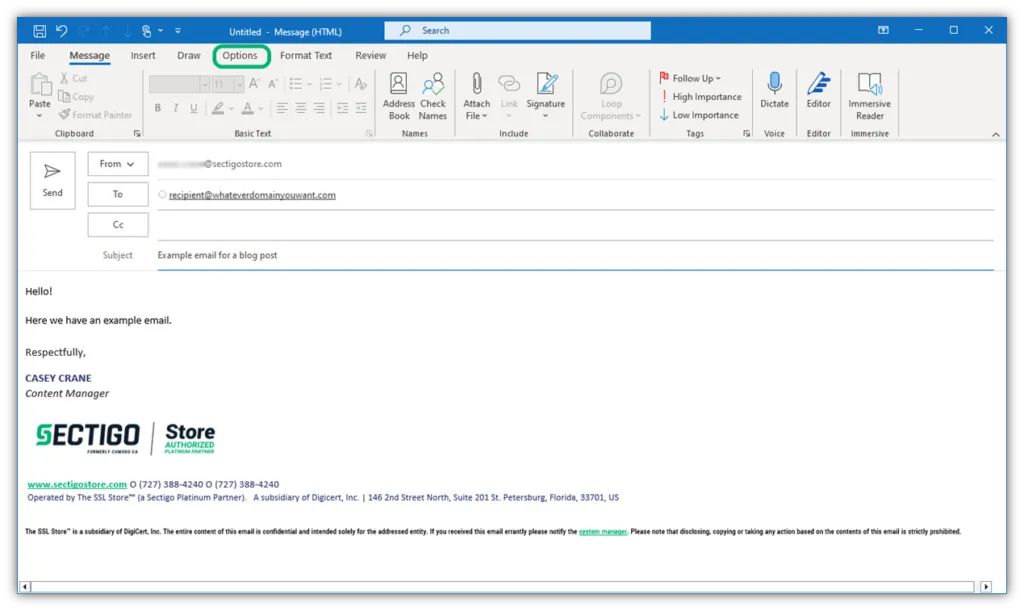
- Open Outlook and create a new email message.
- Go to the Options tab in the ribbon.
- Look for the Sign icon, often represented as a pen or a seal.
- Click the Sign button. You may need to select your digital certificate if prompted.
- Finish composing your email and click Send.
Considerations for Recipients
When recipients receive a digitally signed email, they will see a message indicating the signature's status. A valid signature means that the email is authentic. If the signature is invalid, the recipient should be cautious as it may indicate tampering.
Potential Challenges
- Certificate Expiry: Digital certificates have a validity period; ensure yours is current.
- Configuration Issues: Proper setup in Outlook is necessary for functionality.
- Compatibility: Recipients must also have the capability to verify digital signatures.
Summary Table of Key Points
| Aspect | Description |
|---|---|
| Authentication | Verifies the sender's identity. |
| Integrity | Ensures the message content is unaltered. |
| Non-repudiation | Provides legal proof of sending. |
| Requirements | Digital certificate and proper Outlook configuration. |
Having a digital signature can significantly enhance the professionalism and security of your email communications. Understanding and implementing the above elements will facilitate a smoother experience in adopting this technology.
For more on the finer aspects of Outlook, you can check out how to update your email signature in Outlook for a professional appearance.
Digital Email Signing in Outlook: Real-World Applications
Securing Sensitive Information
Signing emails digitally ensures that sensitive data, such as contracts or financial information, remains confidential and tamper-proof during transmission.
Why this matters: Highlighting how digital signatures protect valuable information builds trust in communications and fosters secure business operations.
Validating Sender Identity
A digital signature verifies the sender's identity, helping the recipient confirm that the email has not been altered and is genuinely from the indicated sender.
Why this matters: Stating the importance of recipient confidence enhances communication reliability, reducing the risk of phishing scams.
Compliance with Legal Standards
Utilizing digital signatures on emails helps organizations comply with legal frameworks such as the eSign Act and other regulations that require verification of electronic communications.
Why this matters: Providing compliance ensures that businesses meet necessary legal requirements, safeguarding against potential penalties.
Streamlining Approval Processes
By digitally signing documents within emails, organizations can accelerate approval processes, enabling quicker turnaround times for contracts and agreements.
Why this matters: Asking teams to minimize delays facilitates more efficient workflows, driving productivity and organizational effectiveness.
Enhancing Email Integrity
Digital signatures ensure the integrity of an email by confirming that the content has not been tampered with since it was signed.
Why this matters: By keeping email integrity intact, organizations maintain their professional image and credibility with clients and partners.
Facilitating Remote Work Solutions
Digital signing allows remote team members to sign documents from anywhere, removing geographical barriers in document approval and authentication.
Why this matters: Highlighting remote work enablement supports flexibility and responsiveness in increasingly virtual work environments.
Integrating with Workflow Automation
Digital signatures can be incorporated into email automation tools, allowing for seamless signing of documents in large email campaigns or internal processes.
Why this matters: Providing automation capabilities enhances operational efficiency and reduces the likelihood of manual errors in widespread communications.
Understanding Email Signing in Outlook
What is a digital signature in Outlook and why is it important?
A digital signature in Outlook is an encrypted signature that verifies the authenticity of the sender and ensures that the message hasn’t been altered. It's crucial for maintaining trust in correspondence, especially in professional or sensitive communications.
How do I set up a digital signature in Outlook?
To set up a digital signature, go to File > Options > Trust Center > Trust Center Settings. Then, select Email Security and click on "Digital IDs (Certificates)" to create or import your certificate. Follow the prompts, and you'll have your digital signature ready for use.
Can I sign emails using Outlook on a mobile device?
No, digital signing is not supported in Outlook mobile applications. You will need to access the desktop version to sign your emails digitally. This limitation is primarily due to the complexity of managing digital certificates on mobile platforms.
What if recipients report issues with my digital signature?
If recipients encounter issues, ensure that your digital certificate is still valid and that they've installed your public key. Additionally, confirm that both parties are using compatible email clients that support digital signatures to avoid compatibility problems.
Signing your emails adds a layer of authenticity and trust that can really make a difference in professional communication. Remember, it’s not just about protecting your message; it’s also about showing your recipients that you value their security. Getting comfortable with digital signatures in Outlook will enhance your email game considerably. So, go ahead and secure those messages with a personal touch! If you're looking to polish up your overall email presentation, consider checking out how to give your email signature a fresh look too—it all ties together nicely!




