Have you ever found yourself typing the same email over and over, wishing there was a way to save time? Well, you're not alone. In the bustling world of communication, a well-designed email template in Outlook can be a game-changer, allowing you to focus on what really matters—your message and your connections. 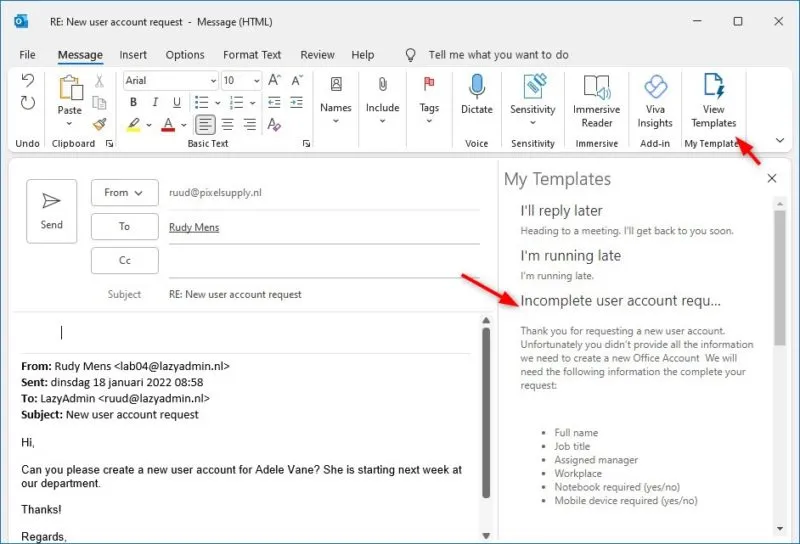
Imagine being able to whip up polished emails in seconds, ensuring consistency in tone and branding. This is where email templates step in, serving as your efficient, user-friendly solution. Whether you're managing a busy workday or reaching out to clients, having a library of templates makes life easier and keeps your correspondence professional.
If you've ever wondered how to set this up in Outlook, you're in the right place. Empowering yourself with this knowledge not only saves time but enhances your productivity and professionalism.
And if you're looking to elevate your overall email presence, consider focusing on your email signature too. A strong email signature can make just as much of an impression as your templates. Check out more about that in our article on creating a professional email signature in Outlook.
Core Elements of Building an Email Template in Outlook
Creating an email template in Outlook is a straightforward process that can save time and maintain consistency in your communication. Let’s break down the core elements involved in setting up your email template.
- Define Purpose: Clarify the purpose of your template, whether it’s for newsletters, announcements, or client follow-ups. This shapes your content and layout.
- Select Settings: Open Outlook and navigate to the “Home” tab, then select “New Email” to start building your template.
- Add Recipients: You can add placeholder addresses or leave this blank, depending on the template's intended use.
- Design Layout: Format your email. Use headers, bullet points, and tables to organize information clearly. Visual hierarchy matters for readability.
| Element | Description |
|---|---|
| Subject Line | Think about a catchy and relevant subject line. This sets expectations for the recipient. |
| Content | Use simple language. Keep paragraphs short and to the point. This maintains engagement and clarity. |
| Email Signature | Include your contact information in a professional format. For more on creating an email signature, visit this article. |
| Visuals | Add images or logos when appropriate. Ensure they enhance your message rather than distract from it. |
After you’ve structured your email, save it as a template. Click “File”, choose “Save As”, and select “Outlook Template” from the file type options. This will facilitate easy future use.
When applying the template, always review and customize the content to fit the specific recipient. This personalization makes the communication feel more intentional.
Similar frameworks can be applied to other aspects of Outlook, such as setting up notifications or managing your calendar, making it a versatile tool for professional communication.
Practical Examples of Creating Email Templates in Outlook
Personalized Customer Communication
Setting up an email template for customer follow-ups can streamline communication. For instance, a sales representative can create a template that includes sections for addressing the customer by name, referencing their specific needs, and suggesting products based on previous interactions.
Why this matters: Highlighting personalized communication fosters stronger relationships and improves customer satisfaction, ensuring that messages resonate better with the recipient.
Event Invitations
Designing an email template for inviting participants to events can save considerable time. Including placeholders for event details, such as date, location, and RSVP links, allows for quick modifications as needed.
Why this matters: Providing a streamlined process for sending invitations enhances organizational efficiency and encourages timely responses from invitees.
Weekly Team Updates
Creating a weekly update template for team communications not only standardizes information sharing but also ensures that all important topics are covered. This can include sections for project progress, upcoming deadlines, and general announcements.
Why this matters: Stating clear expectations and sharing consistent information helps keep the entire team aligned and informed, reducing miscommunication.
Feedback Requests
Using a template for requesting feedback can streamline the process. This template can include questions about specific projects or general inquiries about team performance, making it easy for recipients to respond.
Why this matters: Asking for feedback in a structured way encourages honest responses and helps in gathering actionable insights for continuous improvement.
Acknowledgment of Receipt
Implementing a standardized acknowledgment template for confirming the receipt of documents or requests can enhance professionalism. Including a simple message thanking the sender and a brief outline of next steps can be very effective.
Why this matters: Providing prompt acknowledgment builds trust with stakeholders and reinforces your approach to timely communication.
Project Proposals
Designing a project proposal email template allows users to focus on the proposal content rather than formatting. This template can include sections for objectives, timelines, budgets, and benefits clearly structured for easy reading.
Why this matters: By keeping proposals organized and visually appealing, the chances of capturing the recipient's attention increase, leading to better outcomes.
Monthly Newsletters
Creating a template for monthly newsletters ensures a consistent format. Including sections for featured articles, upcoming events, and subscriber highlights enables quick assembly of content each month.
Why this matters: Providing a regular and visually cohesive newsletter keeps the audience engaged and anticipates future communications.
Create Your Perfect Email Template in Outlook
How do I create a reusable email template in Outlook?
To create a reusable email template, start by composing a new email. Once your content is ready, go to File > Save As, and choose "Outlook Template" from the "Save as type" dropdown. This saves your email in the .oft format, which you can easily access later to send or edit.
Can I customize the design of my email template in Outlook?
Absolutely! While composing your email, you can adjust the font styles, colors, and include images or logos. Just format the email layout as you'd like it to appear, and then save it as a template. Outlook will keep your design intact for future use.
What if I want to share my email template with colleagues?
If you want to share your email template, locate the .oft file on your computer and send it through email or a shared drive. Colleagues can then open the file in their Outlook, and use it just like any other template you've created.
Can I insert fields like the recipient's name into my email template?
Yes, you can personalize your template with placeholders. You can manually type in fields like {FirstName} where you want the recipient’s name to appear. Just remember to replace these placeholders with actual names before sending the email.
With your email template ready to go, you’re all set to streamline your communications in Outlook and make your life a bit easier. Think of how much time you'll save by having ready-made responses that feel personal and polished. Don't hesitate to play around with different designs until you find what suits you best – after all, it should reflect your unique style. If you’re looking to further enhance your email game, consider checking out how to create a professional email signature for that extra touch. Happy emailing!