
Feeling overwhelmed by unread emails in Gmail? You're not alone. With countless messages piling up, it can be daunting to find what you really need. Getting a handle on those unread emails not only helps you stay organized but also ensures that you don't miss out on important communications that could affect your day-to-day.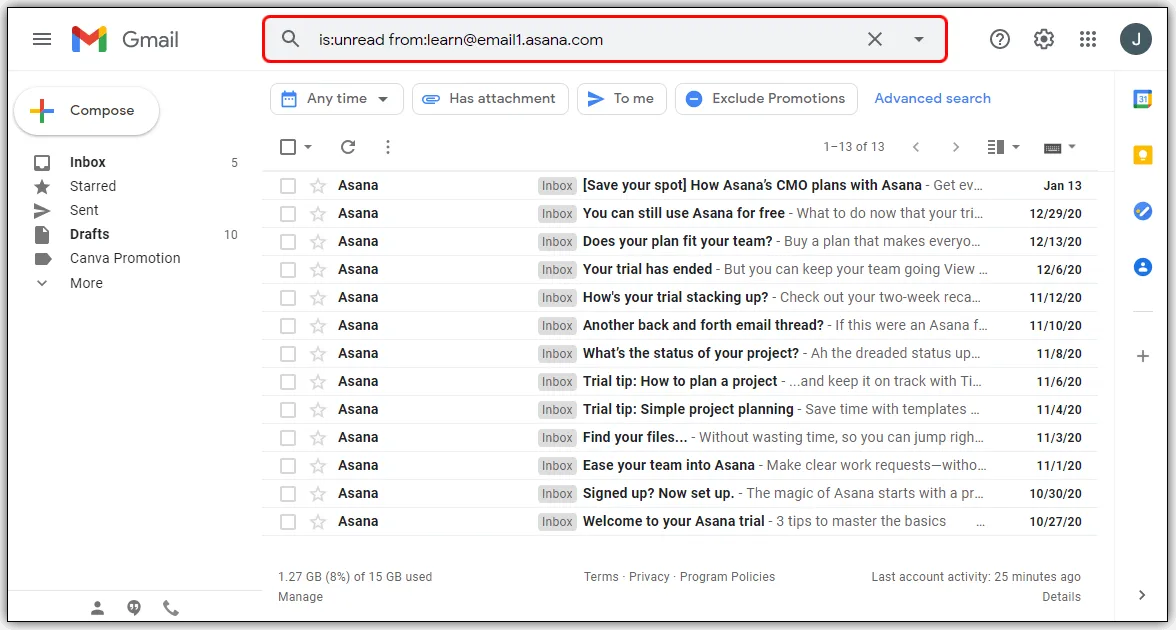
Whether it's work-related queries, personal updates, or crucial notifications, knowing how to filter through your inbox can save you time and stress. Let’s cut through the noise and make managing your Gmail a breeze.
Essential Components for Checking Unread Emails in Gmail
Managing unread emails in Gmail is straightforward once you know where to look. Gmail provides users with a structured interface that allows for easy navigation and organization of unread messages.
- Accessing Gmail: Start by signing in to your Gmail account at mail.google.com.
- Inbox View: On the left sidebar, the default Inbox view displays all emails. Unread messages are bolded, making them easy to spot.
- Using the Search Bar: At the top, the search bar is a powerful tool. Type is:unread to filter only unread emails.
- Exploring Tabs: If you use Gmail tabs (like Promotions or Social), check these tabs, as unread emails might be categorized there.
- Labels and Folders: If you’ve organized emails into labels, select the specific label to see any unread messages within that category.
- Mobile App: On mobile devices, the Gmail app has a similar structure. Tap the Inbox to find unread emails easily listed, or use the search function.
Gmail also offers features that enhance email management:
| Feature | Description |
|---|---|
| Starred Emails | Mark important emails to easily access them later. |
| Priority Inbox | Automatically sorts your emails based on importance. |
| Filters and Blocks | Set rules to manage incoming emails and prioritize your inbox. |
For users seeking added functionality, Gmail integrates well with productivity tools, allowing seamless transitions to other tasks directly from the email interface. Embrace these features to streamline your emailing experience.
Exploring Unread Emails in Gmail: Practical Examples
Using the Unread Filter
Accessing Gmail’s search bar, you can type "is:unread" to quickly filter and display all unread emails in your inbox. This filter enables a focused view of messages that require your immediate attention.
Why this matters: Highlighting the importance of efficient email management, this method ensures that you won’t miss critical emails amidst a busy inbox.
Creating a Custom Unread Label
By creating a label named "Unread," you can categorize emails for easy access. This allows you to drag and drop unread messages into the label, streamlining your workflow.
Why this matters: Stating the effectiveness of organization, this feature helps reduce overwhelm by allowing you to concentrate on actionable items at a glance.
Mobile App Alerts for Unread Emails
Enabling notifications for unread emails in the Gmail mobile app ensures that you are alerted in real-time when messages arrive, making it easier to stay updated on essential communications.
Why this matters: Asking how you can enhance responsiveness, this feature keeps you informed, allowing for timely reactions to important correspondence.
Using Snooze for Unread Messages
Utilizing the snooze feature, you can temporarily hide unread emails, setting them to reappear at a later, more convenient time. This helps prioritize tasks without losing track of important messages.
Why this matters: Providing a way to manage urgency, this function lets you focus on pressing issues while still acknowledging the unread messages awaiting your attention.
Keyboard Shortcuts for Quick Access
By enabling keyboard shortcuts in Gmail settings, you can press "Shift + U" to mark emails as unread, making it easier to revisit messages that you haven’t completed responding to yet.
Why this matters: Highlighting efficiency, this method saves time and streamlines navigation, allowing for quicker email responses and management.
Using the "Mark All as Read" Feature
If you wish to clear your inbox of unread messages that are no longer relevant, using the "Mark All as Read" option provides a swift solution to declutter your email view.
Why this matters: Stating the importance of maintaining organization, this feature enables you to regain focus in your inbox by removing unnecessary distractions.
Integrating Third-Party Email Clients
By connecting Gmail to third-party email clients like Outlook, you can manage unread emails across multiple platforms, ensuring that all important correspondence is tracked regardless of where it was received.
Why this matters: Asking how to enhance versatility, this integration allows for comprehensive email management and ensures you never miss a critical message.
Understanding Unread Emails in Gmail
How do I find all my unread emails in Gmail?
To see all your unread emails, go to the search bar at the top of Gmail and type in "is:unread". Press Enter, and you'll get a list of every unread message. This makes it easy to locate anything you may have missed.
Can I mark all my unread emails as read in Gmail?
Yes, you can mark all unread emails as read. Start by searching for "is:unread". Once the results are displayed, click the checkbox above the email list to select all. Then look for the "More" option, choose "Mark as read," and all your unread messages will be marked as read at once.
Is there a way to organize unread emails in specific folders?
You can organize your unread emails by using labels. After searching for "is:unread", select the emails you want to categorize. Click on the label icon and create a new label or choose an existing one to keep them organized for easier access later.
Why do some unread emails not show up in the unread category?
Some unread emails may not appear if they're in folders other than the primary inbox. Check your Spam, Promotions, or other categorized tabs as they might be hiding there. Also, if you’ve applied filters, certain emails could be automatically archived or categorized.
Now that you know how to check your unread emails in Gmail, you can stay on top of your inbox without feeling overwhelmed. Remember, a quick glance at your unread messages can save you time and help you prioritize what really matters. It’s all about making your email workflow smoother and more manageable. So why not jump into your inbox right now and see what’s waiting for you? You’ve got this!





