
Changing your email signature on your iPhone can seem like a small detail, but it actually plays a significant role in how you present yourself in communications. Whether you’re sending a quick note to a colleague or a detailed email to a client, your signature leaves a lasting impression. It’s an opportunity to showcase a professional image or share essential contact information—not something you want to overlook.
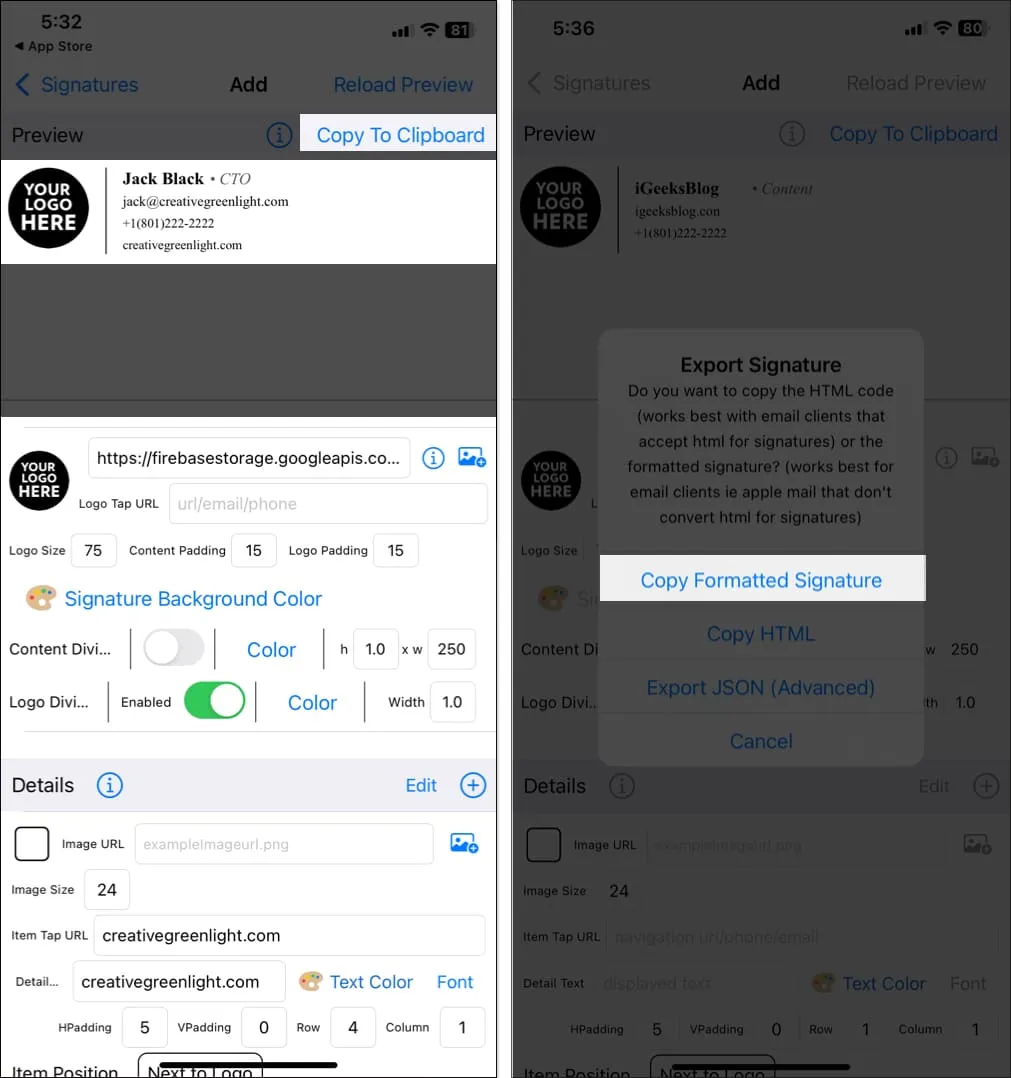
Plus, a customized signature adds that personal touch to your messages, making them feel more curated and engaging. If you've been wanting to make your emails stand out a bit more, changing your signature can do just that. Let’s explore how you can quickly and easily update your signature on your iPhone.
Core Elements of Changing Your iPhone Email Signature
Updating your email signature on an iPhone can enhance your communication style and ensure your recipients have all the necessary information. Here’s a breakdown of the important aspects of this process.
- Accessing Settings: Start by navigating to the Settings app on your iPhone, where you’ll find options for various applications, including Mail.
- Mail Settings: Scroll down to find Mail and tap to access the mail settings where you can adjust your signature.
- Signature Input: Within the Mail settings, look for the option labeled Signature. Here, you can enter or modify your current email signature.
- Multiple Accounts: If you manage multiple email accounts on your iPhone, decide whether you want a single signature for all accounts or a unique one for each.
When composing your signature, consider including:
- Your full name
- Your position or title
- Your company name
- Contact information (email, phone number)
- Company logo or social media links (if desired)
| Element | Description |
|---|---|
| Name | Your first and last name for personalization. |
| Title | A brief description of your professional role. |
| Company | The name of the organization you represent. |
| Contact Info | Essential details for getting in touch, like a phone number. |
| Links | Hyperlinks to your social media or company website. |
After you've entered the desired information, exit the settings to save your changes. Your new signature will now be added automatically to every email you send from your iPhone.
For those familiar with other email platforms, consider checking out how to update an email signature in Outlook for further professional enhancements.
Real-World Examples of Changing iPhone Email Signatures
Personal Branding Enhancement
Individuals can customize their email signatures to include personal logos, taglines, or social media handles, transforming a standard communication into a branding opportunity.
Why this matters: Highlighting personal branding elevates the professional identity in correspondence, making emails memorable and increasing recognition in the digital landscape.
Contact Information Clarity
Including essential contact information like phone numbers and alternative email addresses ensures recipients have multiple ways to reach out, increasing response rates.
Why this matters: Providing clear contact details facilitates communication efficiency, allowing for seamless interactions between parties.
Visual Appeal with Formatting
Users can leverage different fonts, sizes, and colors to create visually appealing signatures that stand out, thereby making their communications more engaging.
Why this matters: By keeping signatures visually interesting, individuals capture the recipient's attention, enhancing the likelihood of their messages being read promptly.
Inclusion of Legal Disclaimers
Professionals, especially in legal and financial fields, can add disclaimers in their email signatures to inform recipients of confidentiality and legal responsibilities associated with email communications.
Why this matters: Stating legal disclaimers protects individuals and organizations by ensuring that all parties are aware of communication protocols and responsibilities.
Promoting Brand Consistency
Businesses can establish a uniform email signature format among employees to maintain brand consistency across all communications, reinforcing brand identity.
Why this matters: Keeping a consistent look across employee signatures builds brand recognition and professionalism, enhancing trust with clients and partners.
Signature Personalization for Different Contacts
Users can create separate signatures for personal and professional correspondence, tailoring the format and content to suit the recipient’s context.
Why this matters: Asking for appropriate personalization shows recipients they are valued, fostering stronger relationships based on context-aware communication.
Convenient Updates Across Devices
By changing email signatures on an iPhone, users can ensure that any adjustments are automatically reflected across all devices connected to their email account, enhancing convenience.
Why this matters: Providing seamless updates increases overall efficiency, ensuring uniform communication regardless of the device being used.
Understanding Your Email Signature Needs
How do I access the email signature settings on my iPhone?
To change your email signature on an iPhone, open the Settings app. Scroll down and select "Mail," then tap on "Signature." Here, you can edit your existing signature or create a new one for each email account you have set up.
Can I use HTML or images in my iPhone email signature?
No, the iPhone's Mail app does not support HTML formatting or images in signatures. You can only use plain text, so keep your signature simple and straightforward.
Will changing my email signature affect my previous emails?
Changing your email signature on your iPhone will only affect new emails sent after the change. Previous emails will retain the signature that was in place at the time they were sent.
I want different signatures for different email accounts. Is that possible?
Yes, you can create different signatures for each email account associated with your iPhone. In the "Signature" settings, select "Per Account" to customize signatures for individual accounts instead of using a single signature for all.
Switching up your email signature on an iPhone is a breeze, and it can really personalize your messages. A well-tailored signature not only reflects your personality but also keeps your communication looking slick and professional. So, why not give it a go? Take a few minutes to revise yours today—it could make all the difference in how you connect with others. And if you're looking to elevate your email game even further, check out how to update your email signature in Outlook for a professional appearance!




