
Changing your email signature in Gmail might seem like a small task, but it can have a surprisingly big effect on how people perceive your professionalism. Your signature is the finishing touch to your emails, reflecting your identity and making your correspondence feel more polished and intentional. 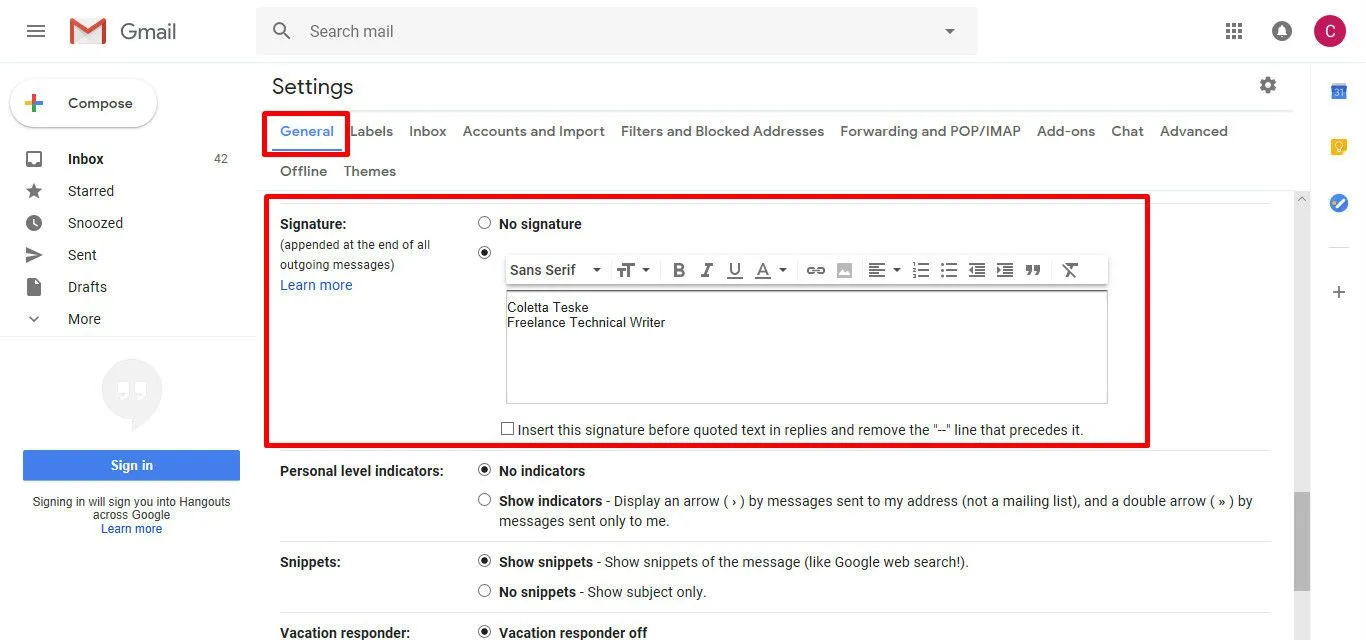
Whether you're updating a job title, adding a new phone number, or just wanting to freshen things up, getting your signature right is essential. It’s your digital calling card that ensures your contacts have all the info they need to reach out. Plus, it's an opportunity to showcase your personality with a touch of creativity.
In the fast-paced world of email communication, having a signature that stands out can make a lasting impression. It’s a simple update, but it shows you care about how you present yourself to your colleagues and clients.
Core Elements of Changing Your Gmail Signature
Updating your Gmail signature is a simple task that can enhance your professional image. Here’s how to navigate the process along with the vital components to consider.
Steps to Change Your Signature
- Open Gmail and log into your account.
- Click on the ⚙️ (gear icon) in the top right corner to open Settings.
- From the dropdown, select "See all settings."
- Navigate to the "General" tab.
- Scroll down to find the "Signature" section.
- To create a new signature, click on “Create new.”
- Type your desired signature in the text box that appears.
- Customize your signature using the formatting options: fonts, colors, and images.
- Select whether to automatically add the signature to new emails and/or replies/forwards.
- Click "Save Changes" at the bottom of the page.
Core Components of an Email Signature
- Name: Use your full name for a professional look.
- Position: Include your job title to establish authority.
- Company: Mention your organization’s name for credibility.
- Contact Information:
- Phone number
- Email address
- Website: Link to your company’s site or your professional portfolio.
- Social Media Links: Include platforms where you engage with audience (e.g., LinkedIn).
- Disclaimer: If applicable, add any necessary disclaimers regarding confidentiality.
Potential Benefits
| Benefit | Description |
|---|---|
| Consistent Branding | Establishes a uniform representation of your business. |
| Professional Appearance | Informs recipients you value communication. |
| Contact Accessibility | Makes it easy for others to reach you directly. |
For further refinement of your email communications, consider exploring how to sign an email for professional communication.
Real-World Applications of Changing Your Gmail Email Signature
Incorporating Social Media Links
Adding icons that link to your professional social media profiles, such as LinkedIn or Twitter, directly in your email signature.
Why this matters: Highlighting your online presence encourages recipients to connect with you on platforms where you share your expertise.
Utilizing Company Branding
Inserting your company logo and using brand colors in your email signature to reinforce corporate identity.
Why this matters: Stating your brand visually creates a professional appearance and enhances brand recognition with every email sent.
Including Contact Details
Providing essential contact information such as your phone number, email, and office address in a clear, organized format.
Why this matters: Ensuring that recipients can easily reach you enhances communication and availability, making it easier for them to follow up.
Special Promotional Messages
Inserting a brief promotional message or tagline that highlights current offers or services available.
Why this matters: Increasing awareness of promotions or new services generates interest and can lead to potential sales or inquiries.
Personal Touch with a Quote
Adding a relevant personal or inspirational quote that resonates with your professional philosophy.
Why this matters: Providing a personal touch invites recipients to connect with your values, making your emails more memorable.
Using Responsive Design
Ensuring that your email signature is mobile-friendly, adapting well on various devices.
Why this matters: Addressing the increasing use of mobile devices for email ensures your signature looks professional regardless of how it's viewed.
Multiple Signatures for Different Contexts
Setting up different email signatures for personal, marketing, and formal communications, enabling tailored messaging.
Why this matters: Organizing your communications properly allows for a consistent and appropriate presentation based on context.
Optimize Your Gmail Signature With Expert Insights
How do I access the settings to change my Gmail signature?
To change your Gmail signature, log in to your Gmail account. Click on the gear icon in the top right corner, then select "See all settings." In the "General" tab, scroll down to the "Signature" section to make your changes.
Can I use images in my Gmail signature?
Yes, you can definitely incorporate images into your Gmail signature. While editing your signature in the settings, click the image icon and upload your desired image directly from your computer or by using a URL.
Is it possible to have different signatures for different email addresses?
If you manage multiple email addresses under the same Gmail account, you can create separate signatures for each one. Switch your active email address using the drop-down menu in the signature section and customize accordingly.
Why isn't my new signature showing up in emails?
If your new signature isn’t appearing, ensure you've selected it in the signature settings and that it’s set to be included in new emails. Also, check your email format; signatures may not appear in plain text emails.
For further insight into effective email communication, check out our article on [How To Sign An Email For Professional Communication](https://www.aceentertainment.io/how-to-sign-an-email-for-professional-communication/).Having your email signature in order can really enhance your communication presence and help you make a lasting impression. It’s amazing how a small addition can convey your personality and professionalism all at once. So, whether you’re adding a simple contact detail or an inspiring quote, just remember that your signature is a reflection of you. Go ahead and make those changes; your emails will feel much more complete, and who knows—you might just inspire someone with your unique touch. Happy emailing!




