
Want to make your emails more engaging? Adding a GIF is a fantastic way to showcase your personality or lighten the mood. Whether you're communicating with colleagues, friends, or clients, a well-placed GIF can convey emotion that words alone often can't. 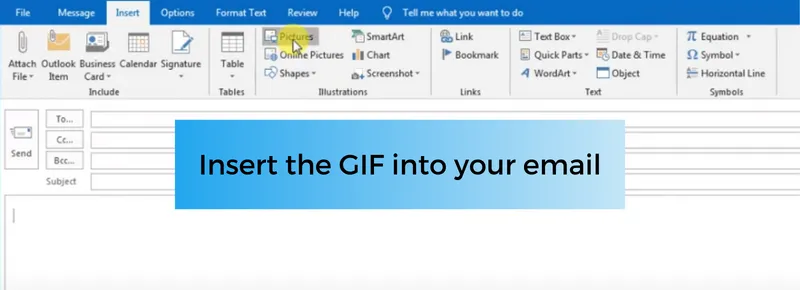
The process of attaching a GIF to an email isn't as complicated as it seems. Most email platforms support this feature, but knowing the right steps can make the transition from static images to animated ones seamless. Not only does this add flair, but it also keeps your message fresh and engaging.
If you're familiar with attaching attachments in general, you're already halfway there. The challenge is really just navigating a couple of extra steps. Once you get the hang of it, you'll wonder why you didn’t start using GIFs sooner.
Core Elements for Attaching GIFs in Emails
Attaching a GIF to an email can add a dynamic touch to your communications, making them more lively and engaging. Here's how to do it effectively across various platforms, along with some considerations to keep in mind.
Basic Steps for Attaching GIFs
- Choose the Right GIF: Make sure it’s relevant to your message. Use platforms like Giphy or Tenor to find high-quality GIFs.
- Download the GIF: Save the GIF to your device. Make sure to use the appropriate file format (.gif).
- Open Your Email Client: Whether you’re using Gmail, Outlook, or another service, find the option to compose a new email.
- Attach the GIF:
- For webmail clients like Gmail, use the attachment icon (a paperclip) or drag and drop the GIF into the email body.
- In Outlook, use the “Insert” menu, select “Pictures,” then navigate to your downloaded GIF.
- Check Playback: Before sending, ensure the GIF plays correctly in the preview window of your email.
Considerations When Using GIFs
- Email Client Support: Not all email clients support GIFs or may not display them correctly. Be mindful of your recipient’s potential experience.
- File Size: Ensure the GIF isn’t too large, as this may slow down loading times and could get flagged by email servers.
- Professionalism: Consider the context of your message. While GIFs can add personality, they may not be suitable for all professional communications.
Pros and Cons
| Pros | Cons |
|---|---|
| Engagement: GIFs can make emails more lively and captivating. | Compatibility Issues: Some email clients may not display GIFs properly. |
| Communication Enhancement: A well-placed GIF can convey emotions or clarify a message. | Distractions: Overuse of GIFs might detract from the main message. |
| Brand Personality: GIFs can highlight a brand's fun aspect. | Professionalism Concerns: In a formal setting, GIFs might seem unprofessional. |
For further insights on handling emails with professionalism, check out our article on attaching emails in Outlook.
Real-World Examples of Attaching GIFs to Emails
Bringing Humor to Your Messages
Embedding a funny GIF in your email to a colleague can lighten the mood, making your communication more relatable.
Why this matters: Highlighting creativity helps to foster a more open workplace culture, improving relationships among team members.
Enhancing Marketing Campaigns
Using GIFs in promotional emails can capture attention and engage potential customers, increasing click-through rates.
Why this matters: Stating visually appealing content aids in creating a memorable impression, encouraging conversion in marketing endeavors.
Showcasing Product Features
Incorporating a GIF that demonstrates a product in action can effectively communicate its features without using lengthy descriptions.
Why this matters: Providing clear visual examples assists in reducing customer doubts, facilitating informed purchasing decisions.
Creating Engagement in Newsletters
Adding a vibrant GIF to your company newsletter can draw readers' attention, making your content more engaging and informative.
Why this matters: Asking readers to interact with eye-catching visuals elevates the likelihood that they will read and engage with your content thoroughly.
Personalizing Client Interactions
Including a custom GIF that reflects the recipient's interests can help personalize your outreach, making clients feel valued.
Why this matters: By keeping interactions tailored to individual preferences, you enhance the likelihood of favorable responses during business correspondence.
Making Event Invitations Stand Out
Sending a GIF as part of an event invitation can make it more appealing and entice recipients to participate.
Why this matters: Highlighting excitement through visually dynamic content increases event attendance and engagement.
Building Brand Identity
Consistency in using branded GIFs in emails can help reinforce brand identity and make your communications easily recognizable.
Why this matters: Providing a visually cohesive experience assists in strengthening brand recall, which is essential for standing out in a crowded market.
Attaching GIFs in Your Email Made Simple
Can I directly attach a GIF file to my email?
Yes, you can attach a GIF file just like any other file type. Most email services allow you to use the "attach file" functionality, and you simply need to select the GIF from your device. Keep in mind that some email services may have file size restrictions.
What happens if my GIF doesn't animate when I send it?
If a GIF appears static after you send it, it could be due to the email client the recipient is using. Some email clients only show the first frame of the GIF. It's a good practice to check how it looks in a few different email applications before sending it out.
Is it better to embed a GIF in the email or attach it?
Embedding a GIF can make your email look more lively as the recipient usually sees it right away. However, attaching it may ensure that the GIF appears as intended across various email clients. Consider your audience’s preferences when deciding.
Are there any file size limits when sending GIFs in email?
Yes, most email services have a file size limit, usually ranging from 10 MB to 25 MB. If your GIF exceeds this limit, you might need to compress it or use a file hosting service and share the link instead.
Attaching a GIF to your email can be a fun way to express yourself and add some personality to your messages. Just remember to check the file size and ensure your recipient can view it seamlessly, as not all email clients support animated images. With this little knowledge under your belt, don’t hesitate to sprinkle your emails with a bit of flair—your friends and colleagues will thank you for it! Now go ahead, get those GIFs rolling, and brighten someone’s inbox today.





