
Ever hit “send” on an email and immediately regretted it? You're not alone. It's a stressful moment that can leave you feeling anxious about potential miscommunication or embarrassment. Knowing how to recall an email can save you from those cringe-worthy situations and keep your professional reputation intact.
Whether you mistakenly sent it to the wrong person or wish you had worded it differently, having the ability to retract an email is crucial nowadays. This isn’t just about fixing typos; it’s also about maintaining the clarity of your message and ensuring your intentions are understood.
There are steps you can take, especially in platforms like Outlook, to limit the damage and, hopefully, make that email vanish. Understanding these processes can equip you with the confidence to communicate more thoughtfully.
Understanding the Recall Process: Step-by-Step Essentials
Recalling an email can be a game-changer when you realize you've sent something you shouldn't have. The ability to undo an action reduces mistakes and enhances communication professionalism. Here are the core components involved in this process.
How Email Recall Works
When you choose to recall an email, you’re essentially asking the email server to withdraw the email from the recipient's inbox. This action is contingent on specific conditions:
- Recipient's Email Client: Both sender and recipient must be using compatible email clients, typically Outlook.
- Message Status: The original email must remain unread by the recipient.
- Server Settings: Both inboxes must be on the same email server, like Microsoft Exchange.
Step-by-Step Recall Process in Outlook
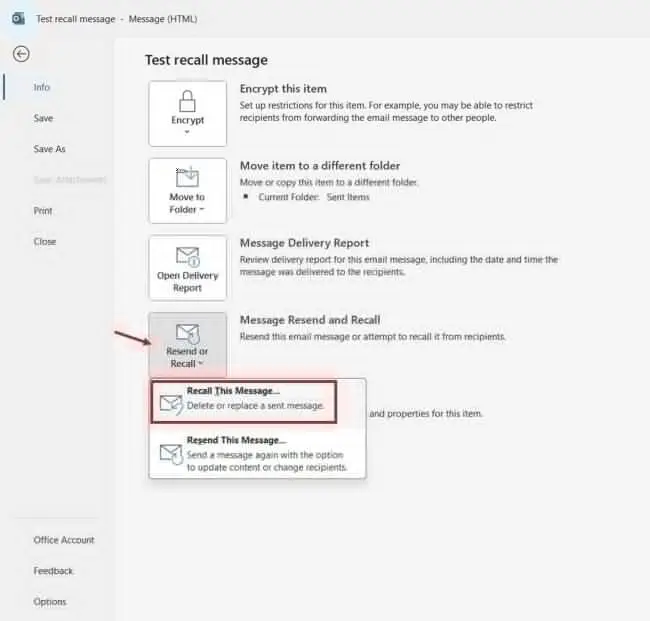
Here’s how to perform the recall procedure in Outlook, which is one of the most commonly used platforms:
- Open the Sent Items folder.
- Double-click on the email you wish to recall.
- Navigate to the Message tab.
- Select Actions and click on Recall This Message.
- Choose whether to delete unread copies or replace the message with a new one.
- Click OK to finalize your request.
Considerations Before Recalling an Email
While the process seems straightforward, a few factors are critical to keep in mind:
- Recipient Delay: Even if you send a recall, if the recipient has already read the message, your efforts may be in vain.
- Notifications: Often, recipients are notified about your recall attempt, which can highlight your mistake.
- Alternative Outcomes: The recipient may still receive the original email along with the recall notice, leading to confusion.
Pros and Cons of Email Recall
| Pros | Cons |
|---|---|
| Quick Fix: Retract a message before it causes misunderstandings. | Compatibility Issues: May not work if the recipient uses different software. |
| Professionalism: Helps maintain a polished image in business communications. | Reader Awareness: Recipients may be alerted about your recall effort. |
| Control: Allows you to manage what goes out from your inbox effectively. | Partial Success: May not retrieve the message if read or moved to another folder. |
In summary, understanding these elements of email recall can significantly shape how you navigate communication mishaps. For more on managing email follow-ups in Outlook, check out our article on unsending emails in Outlook.
Practical Use Cases for Email Recall
Rectifying a Misaddressed Email
Upon realizing you've sent a sensitive email to the wrong recipient, you can initiate the recall process to prevent further read access to the content.
Why this matters: Stating the importance of privacy, recalling the email can help maintain confidentiality and prevent potential data breaches.
Correcting a Spelling Error
If you notice a significant spelling or grammatical error in your email immediately after sending, recalling it allows for instant correction and resending.
Why this matters: Highlighting the value of professionalism, ensuring your correspondence is error-free reflects positively on your communication skills.
Updating Incorrect Information
When you discover that the data shared in your email is wrong, you can recall it to send a corrected version to your recipients.
Why this matters: Providing accurate information reduces confusion and maintains your credibility as a reliable source of data.
Reassessing the Tone of the Email
If after sending, you realize your email's tone may be perceived as harsh or inappropriate, recalling it offers a chance to rephrase before it can be read.
Why this matters: Asking for clarity ensures that your tone is professional and preserves good relationships within your professional network.
Preventing an Outdated Message
When you recognize that your email accounts for outdated information following a recent update, a recall allows you to replace it with the most current facts.
Why this matters: Emphasizing timeliness, sharing up-to-date information prevents miscommunication and enhances decision-making processes.
Accidentally Including Unintended Recipients
If you inadvertently included someone in the email chain who shouldn’t have been privy to the conversation, recalling the email mitigates potential disclosure risks.
Why this matters: Highlighting confidentiality is crucial, as protecting sensitive information fosters trust within professional relationships.
Addressing a Responded Email
In cases where you send a reply that is not adequately considered and receive an immediate response, you may want to recall it for clarity or additional information.
Why this matters: Providing thorough responses helps keep communication clear and prevents misunderstandings that could arise from hasty replies.
Need Help with Email Recall? Here Are Your Questions Answered
Can I recall an email after it’s been sent to a recipient who uses a different email provider?
No, email recall features typically work only within the same email system. So, if you sent an email from Outlook to a Gmail user, you won’t be able to recall it. The recall function relies on both sender and receiver being on compatible platforms.
What happens when I attempt to recall an email in Outlook?
When you try to recall an email in Outlook, the recipient will receive a notification of the recall attempt. If they haven't opened the email yet, it might disappear from their inbox. However, if they’ve already read it, you can't take it back.
Is there a way to know if my email recall was successful?
What should I do if I can’t recall an important email?
If recalling isn’t an option, consider sending a follow-up email to clarify or apologize for any mistakes. It's an effective way to manage misunderstandings and maintain professionalism.
Recalling an email can feel like a lifesaver when you realize you've hit "send" a moment too soon. Remember, if you're using Outlook, you have the option to unsend that message before it reaches the recipient's inbox. It’s all about acting fast and knowing how your email system works. So next time you feel that familiar pang of regret after hitting send, take a deep breath, follow the steps, and regain control of your message. You’ve got this—go ahead, give it a try and take charge of your communication! For more insights on managing email mishaps, check out our article on unsending emails in Outlook.




