
Are you tired of sifting through an overflowing inbox, hoping to find that one important email? You’re not alone. Archiving emails in Outlook can be a game changer, helping you declutter your workspace and focus on what truly matters. 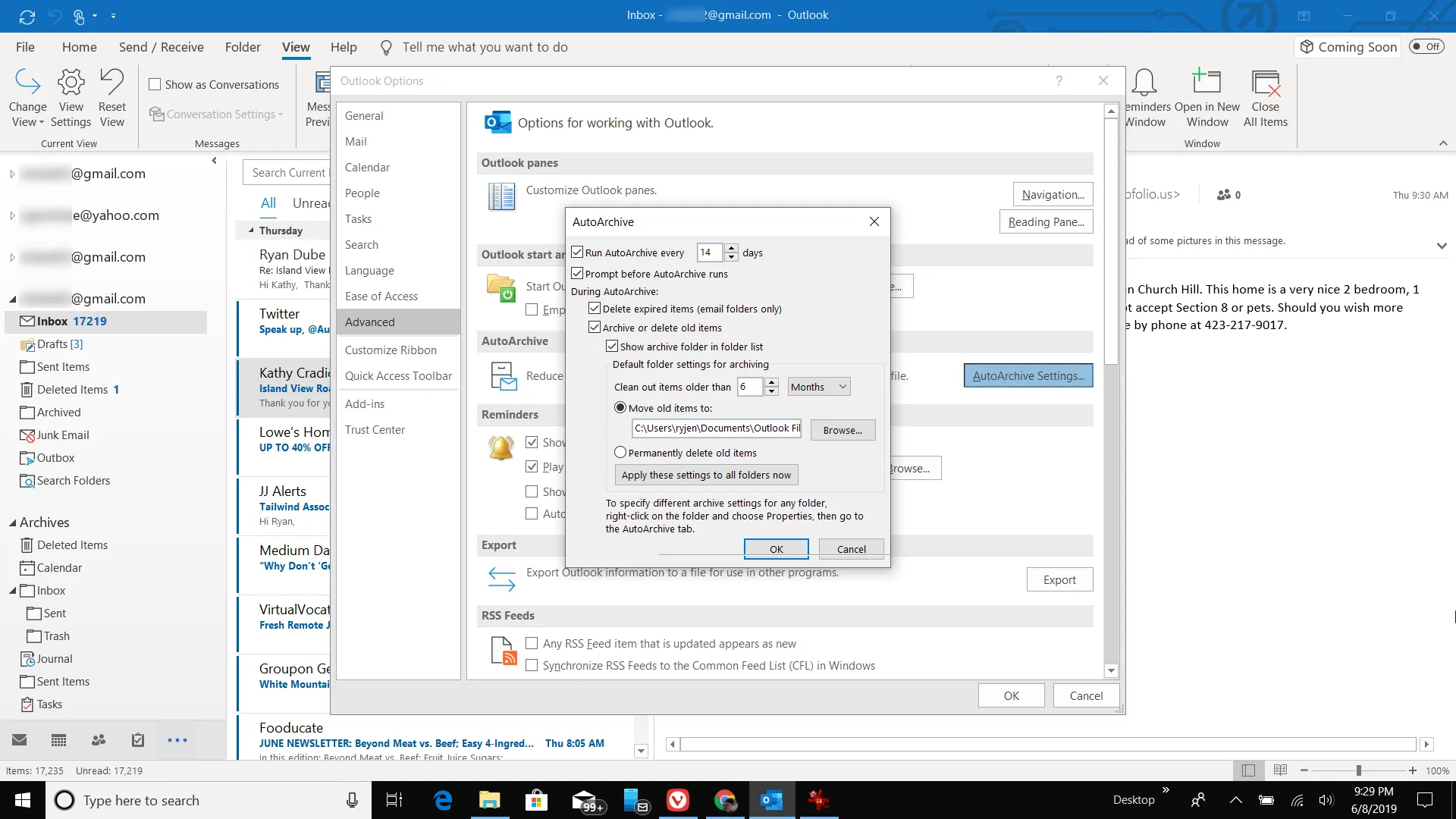
The benefits of keeping your inbox organized extend beyond just aesthetics. A streamlined inbox can enhance your productivity, reduce stress, and make it easier to locate crucial correspondence. In a busy work environment, every minute counts, and having a systematic approach to email management can free up valuable time.
This comprehensive look at archiving emails in Outlook will help you take control of your inbox and keep your workflow smooth. Whether you're new to Outlook or just need a refresher, understanding how to archive correctly will help you maintain efficiency and peace of mind.
Essential Elements for Archiving Emails in Outlook
Archiving emails in Outlook is a straightforward way to keep your inbox organized and your email client running smoothly. By archiving, you move emails you no longer need immediate access to from your main inbox to an archive folder, helping reduce clutter. Below are the critical steps and components involved in this process.
- Know Your Outlook Version: Different Outlook versions (like Outlook 2016, 2019, or Outlook for Microsoft 365) may have slightly different steps. Make sure to be familiar with the specific version you're using.
- Access the Archive Option: Navigate to the File menu. Select Info, then choose Tools to find the archiving options.
- Choose What to Archive: You can choose to archive everything or just specific folders. Decide which emails you want to include in the archive.
- Set Your Archive Settings: In the Settings, you can adjust when to archive (e.g., emails older than a specific date) and determine the location of your archived files.
- Manual vs. Automatic Archiving: You can archive emails automatically based on the settings you select. Alternatively, you can manually drag and drop emails into the archive folder at any time.
- Finding Archived Emails: Archived emails are stored separately. To access them, look for the designated archive folder in your folder list or use the search functionality in Outlook.
The process enhances your email performance and makes it easier to manage ongoing correspondence. Here’s a quick look at the pros and cons of archiving emails:
| Pros | Cons |
|---|---|
| Reduces clutter in your inbox for easier navigation. | Archived emails may take longer to retrieve if not organized well. |
| Improves Outlook performance by reducing the load on the main inbox. | Potential for emails to be forgotten if they remain archived for too long. |
| Allows for better organization as emails can be sorted into categories. | Misplacing or accidentally deleting the archive file can lead to potential data loss. |
Utilizing these components can enhance your email management while ensuring you have access to important information when needed. For those who also use Gmail, you might find valuable information in this article: Where Do I Find Archived Emails In Gmail For Easy Access.
Practical Uses for Archiving Emails in Outlook
Maintaining a Clutter-Free Inbox
Archiving old emails allows users to remove unnecessary clutter from their inbox, making it easier to focus on new and important messages.
Why this matters: Highlighting the ability to streamline workflow, a tidy inbox improves productivity by reducing distractions.
Preserving Important Information
Users can archive emails that contain vital data or attachments, ensuring that critical information is not lost over time.
Why this matters: Stating that archived emails serve as a reliable record helps in maintaining essential information for future reference.
Improving Email Search Speed
By archiving emails, users reduce the amount of data Outlook needs to sift through, leading to faster search results when looking for specific messages.
Why this matters: Asking employees to save time while searching enables them to find relevant emails quickly, enhancing workflow efficiency.
Organizing Emails into Folders
Outlook allows users to create specific folders for archived emails, which helps in organizing communications by project, client, or topic.
Why this matters: Providing a structured filing system enables easier retrieval of related emails when needed, promoting better organization.
Freeing Up Server Space
Archiving emails can help free up space on email servers, which can be particularly beneficial for organizations with storage limitations.
Why this matters: By keeping server space manageable, companies can ensure their email systems run smoothly without interruptions.
Compliance with Legal Requirements
For businesses, archiving emails can assist in meeting legal and regulatory compliance by retaining important communications for specified periods.
Why this matters: Stating the importance of compliance helps organizations avoid legal penalties and ensure they have the necessary records in case of audits.
Creating a Backup of Important Emails
Archiving allows users to create a backup of significant emails, providing peace of mind in case of accidental deletions or data loss.
Why this matters: Highlighting the reliability of backups reassures users that their essential email history is secure and accessible whenever needed.
Understanding Email Archiving in Outlook
How do I manually archive emails in Outlook?
To manually archive emails in Outlook, go to the "File" tab and select "Tools." From there, choose "Clean Up Old Items," and in the dialog box, specify the folder you want to archive. Select the date before which emails will be archived and click "OK" to start the process.
What happens to emails once they are archived?
Once emails are archived, they are moved from your primary mailbox to a separate archive file, usually stored as a .pst file. This helps free up space in your main mailbox, but don't worry—archived emails can be easily accessed through the Archive folder in Outlook.
Can I set Outlook to automatically archive my emails?
Yes, you can set Outlook to automatically archive emails by going to "File," selecting "Options," then "Advanced." Under the "AutoArchive" section, you can configure how often Outlook archives emails, choose what actions to take, and set criteria for archiving items.
Is there a way to recover archived emails in Outlook?
Absolutely. To recover archived emails, go to the "File" tab, select "Open & Export," and then "Open Outlook Data File." Navigate to where your archived .pst file is stored, select it, and click "OK." The archived emails will appear in your Outlook folder list.
Staying organized can feel like a daunting task, but archiving your emails in Outlook is a fantastic way to keep your inbox clutter-free without losing important messages. By regularly archiving, you not only make it easier to find what you need but also enhance your overall email experience. So, why not take a few minutes right now to start archiving? It’s a small step that can make a big difference in how you manage your communications. Happy archiving!





